
how to turn on the extra lights in ets2
Do you want to add extra lights to your truck to see the road better? Or just to show off your new flashy truck? (XD)
Well, in both cases I’ve got you covered! On this page you’ll find how to adjust and turn on the extra lights in Euro Truck Simulator 2 (ETS2) in less than 3 minutes.
extra lights functionality
Adding additional lights to your truck in the roof or in the low part of it can improve the overall lighting and visibility, especially at night.
Depending on the purpose of the truck, you might want to consider installing them on the roof or at the bottom. In the following table you can see when it is better to install one or the other.
| Placement | Usage | Benefits |
|---|---|---|
| Roof Bar | Long-distance highway driving | Best visibility distance with a high beam. |
| Bumper | Narrow roads or difficult conditions (rain, snow). | Better illumination of the road near you. |
| Both (roof and bumper) | Night driving in rural roads. | Total visibility (combination of the two above) |
how to add extra lights to your truck in ets2
Before I show you how you can turn them on, you need to install on your truck the additional lights (just in case you don’t already have them installed). For that, you would need to visit the service center and add a roof bar or bumper bar to your truck. Then add the type of lights that you want (if you aren’t using mods, there are 3 types of them) and where you want them.
For this example, I’ve added a roof bar included in the HS-Schoch Tuning Pack DLC, but you can use the others from the base game or from free mods. Then, I added the square lights that you see already installed. I’ll add some links at the end of the article of the best tuning mods so you can have more light options.
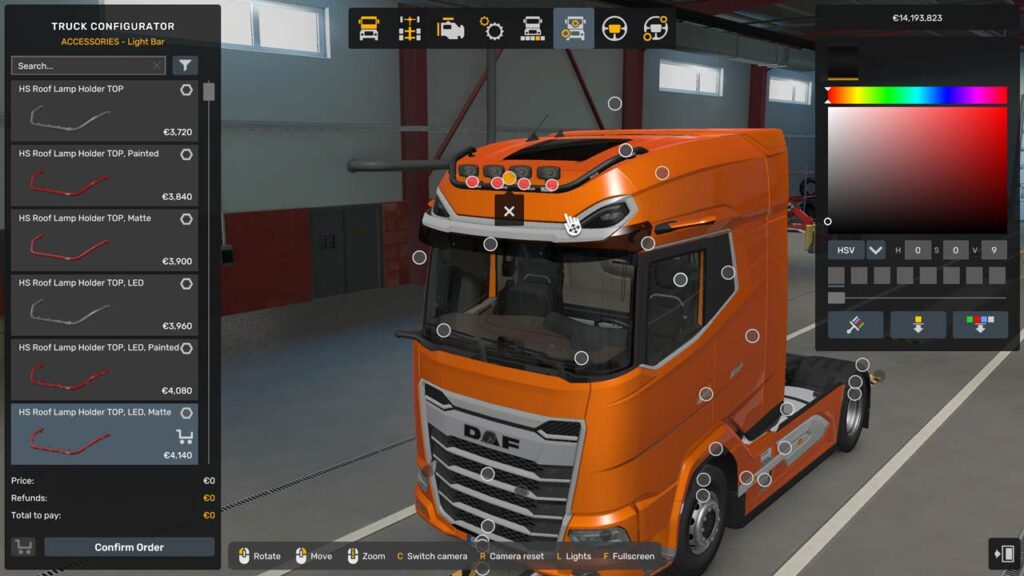
How to turn them on:
1. Once you are driving the truck, press F4 on your keyboard. You’ll access the truck adjustments panel for the user, where you can also adjust other things like the seat position and the field of view of the mirrors and access the lights options, which appear to be number 3.
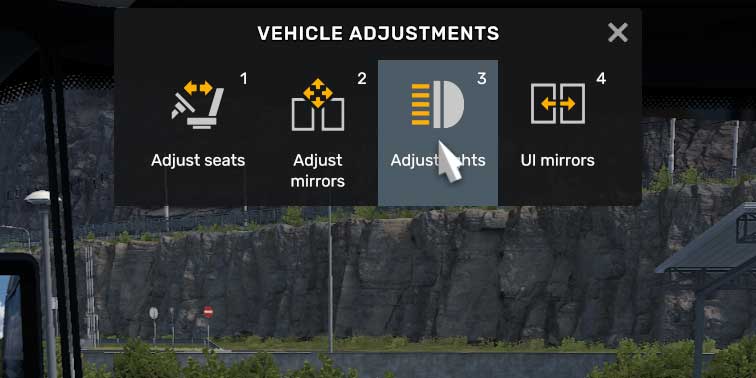
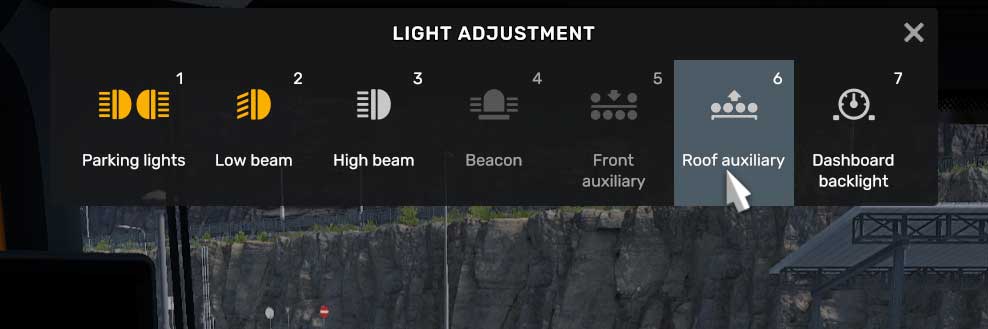
2. Press the number 3 to access the lights adjustment panel or click the icon with the mouse. As you can see in the image below, you can now turn on the extra lights from this panel by clicking them or tapping the key assigned for them (5, 6, or both).
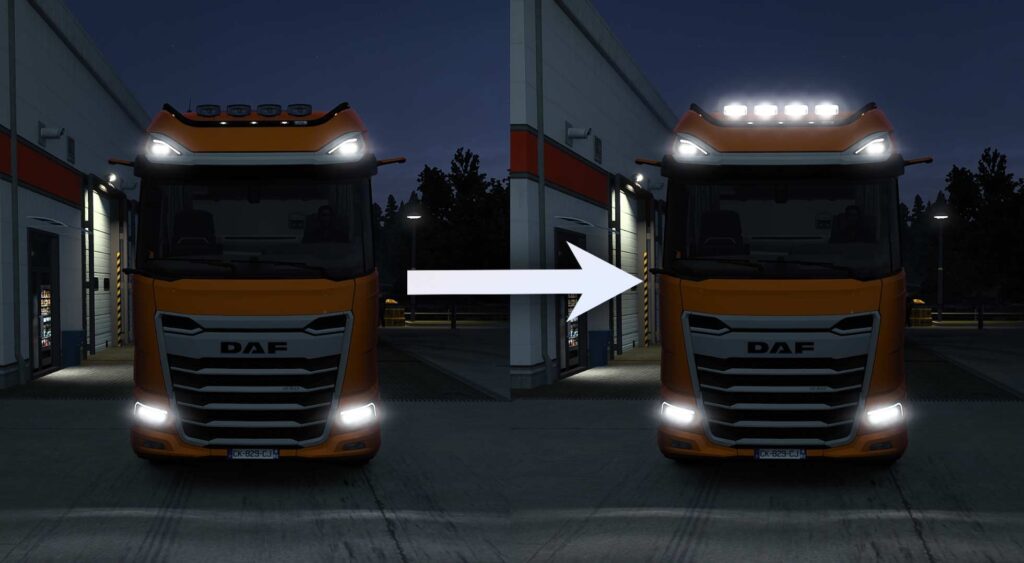
3. Now, the next time you use the high beam, you’ll see the difference.
best tuning mods for ETS2 (lights, roof bars, etc.)
–BC-Exterior Belka accessory: adds way more things than just lights. This is one of my favorite mods of all time exactly because of that, it comes with lights, license plates, accessories for the exterior of the truck, truck signs, and a bunch of different things for tuning. (Steam Workshop): https://steamcommunity.com/sharedfiles/filedetails/?id=2661499223
–SGD TRUCK TUNING PACK: Similar to the last one, this one adds roof panels, lights, new paint configs, and seriously, a lot of new things to tune your truck. (Steam Workshop): https://steamcommunity.com/sharedfiles/filedetails/?id=3540960579
–Realistic Headlights: This one doesn’t add more lights to the game but makes the overall lighting of the truck more realistic. If you like realism in this game, you should definitely check this out because it modifies and makes a lot more realistic how the light reflects and behaves in the game. (Steam Workshop): https://steamcommunity.com/sharedfiles/filedetails/?id=2112187479
If you found this guide helpful, I remind you that I have more like this one on this web or on my YouTube channel, you can go check them out if you want!
