
update your windows pc in less than 3 minutes easily.
There are lots of reasons why you need to install, most of the time, the last update available for your systems because, nowadays, everything is digital. This may have some advantages but also some other disadvantages, like risks of information being stolen, the system not working properly, or a higher risk of being infected by malware.
In this guide I’ll show how you install the latest update for your Windows system so you can be protected when surfing the internet, downloading files from webpages, and ensuring that your computer works properly.
reasons to update
The reasons why you should update your Operating System (OS) are the following:
- Enhance security: a new update can bring updates to Windows Defender, which may help in preventing infections.
- Enhance performance: Sometimes, the updates fix specific performance issues on the computers.
- New features: new updates implement the latest software technologies and enhancements. I recommend you consider your personal preferences for this point because the last Microsoft Windows updates weren’t well received by the users because of the AI integration in most of the Windows apps. As a result, users were skeptical about the addition of this technology.
- Computer stability: summarizing the previous points, having the latest update ensures that your system is up-to-date and works with the latest and finest operating system update.
reasons to not update
As everything in life, updating your system has its own disadvantages as well as advantages. here I’ll present you the most common ones that you should keep in mind before updating:
- System bugs: because the updates are new and probably not tested by lots of users, you may experience some minor bugs (usually) or bigger instabilities (more rare but still possible).
- New unwanted features: As I said previously, the new AI updates are upsetting lots of users (including myself), which can lead to you regretting updating your system, as these features can make your computer feel cheaper, less reliable, or even more intrusive. But this is completely subjective and depends on your preferences.
how to update windows step by step
- Open the settings panel either by the keyboard shortcut (Windows Key + I), pressing the Windows button and clicking on the settings icon in the pinned apps of the menu, or by searching for “Settings” in the search box located in the taskbar.
- Once in the settings application, locate the “Windows Update” option at the bottom left part of the menu. Click on it.
- Click on the blue button that says “Check for updates” at the top left side of that screen to check if the system has updates pending to install.
- If you have updates pending to install, they will automatically download, and you’ll be able to see the progress of each download (in case you have more than one).
- When the updates finish downloading, you need to install them. Click on the install button next to the name of the update and wait for it to install.
- Once installed, you need to restart the computer. Most likely, you’ll see an option in the same screen as the updates telling you to restart the computer to apply the updates. Click on that button, and the updates will be finally applied to your system.
Congratulations! Now you have your system up to date on the last software updates available. If you experience issues that you didn’t in the last version of the system, there is still some time to downgrade and uninstall the update.
If that’s your case and you want to uninstall a specific Windows update, you need to follow the following steps:
how to uninstall a windows update
Yes, it’s possible to uninstall a Windows update if you want to. Maybe it’s because you don’t like the new user interface of something, or you detected an issue that wasn’t present then that is driving you mad. In any case, you need to follow these steps to uninstall it and go back to the previous version of Windows.
- Open the settings panel. (Start > Settings)
- From there, you need to go to the Windows Update tab.
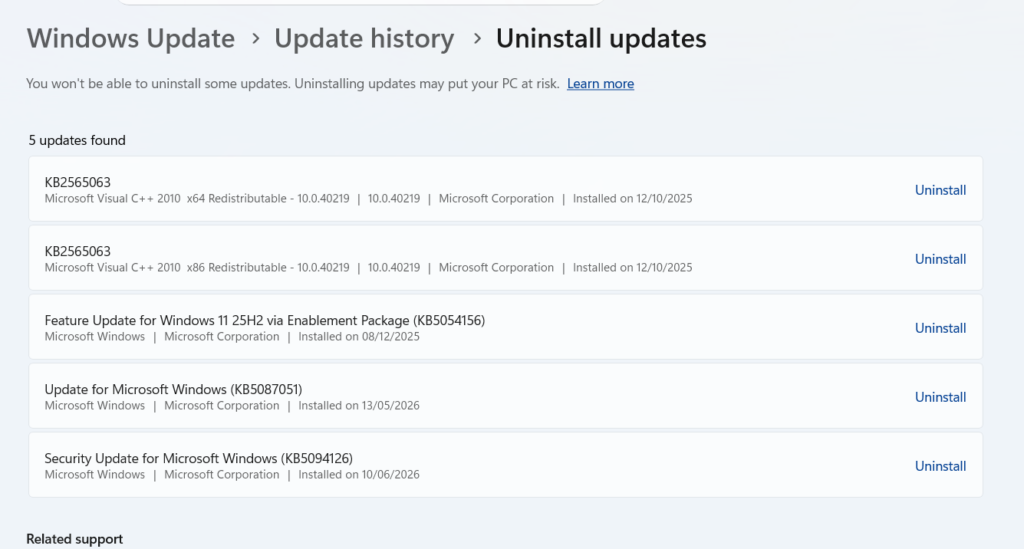
- You’ll see the third option that says “Update history.” Enter there, and on that screen you can now see all the updates that you (or the system) installed. You can see more details about them (the changes made, new features added, etc.) if you click the “Learn more” button. This can be useful if you don’t know for sure if something messed up your system.
- In the Uninstall updates setting, you can see all the available updates to uninstall at that time.
- Click the ones that you want to uninstall from the operating system and follow the process. You’ll be guided by the system on what to do.
If you found this guide helpful, I remind you that I have more like this one on this web or on my YouTube channel, you can go check them out if you want!
